Discover how Chati's self-service licenses give you full control - build, update, and launch virtual events on your terms. Register for our free webinar today!
November 2026
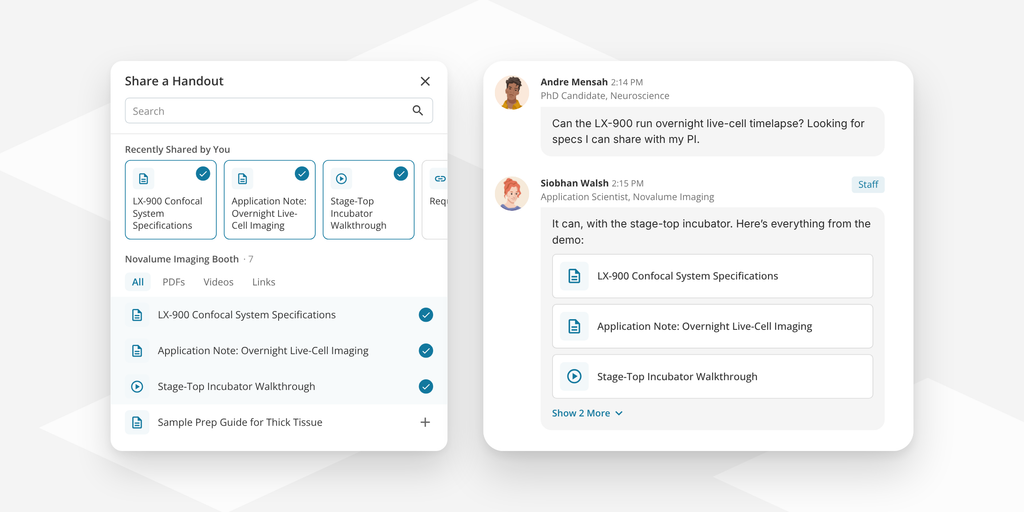
You spent weeks building great content for your event: session slides, sponsor brochures, product videos, the attendee guide. But when someone actually needs it, they're in a chat asking a question, and the answer is buried three clicks away.
Now the answer can be the content itself. An attendee asks the help desk where to find the agenda, and the attendee guide can be added right in the chat. A booth visitor asks about pricing, and the brochure is in their hands before they move on. Attendees get what they need without leaving the conversation, and the content you worked so hard on finally gets seen.
Every view counts. Handouts opened from chat count toward handout tracking in your event metrics, so the content your team shares in conversation shows up in the numbers you report on.
You stay in control. Staff only share handouts from the spaces and webcasts they work, so what they share always fits the conversation, and event admins can share anything in the event. Handout sharing is on by default for admins and staffers (never available to attendees), and you can limit it to admins or turn it off in Event Settings.
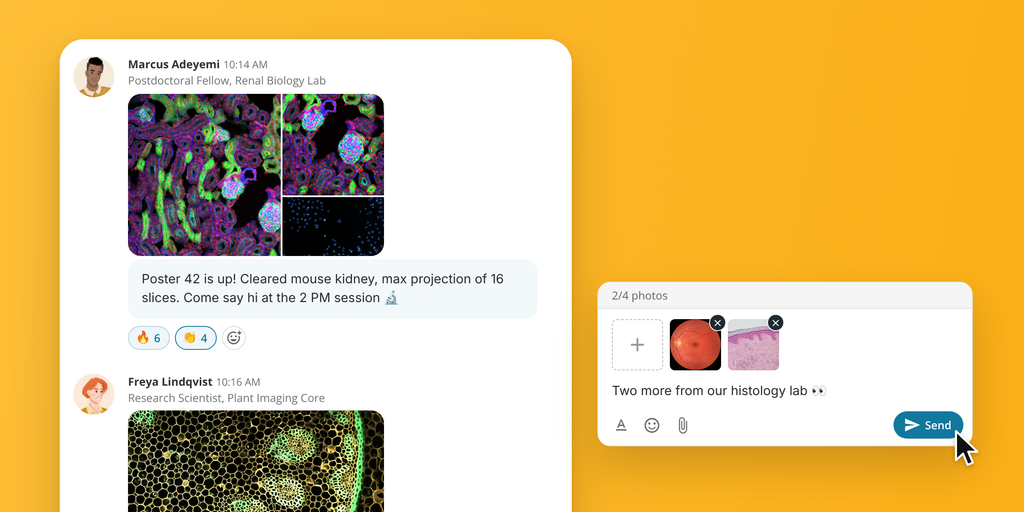
Chat just got more visual. Attendees and staff can now add up to 4 photos to a message by clicking the paperclip, dragging photos into the chat, or pasting them. Photos show as a neat album in the conversation and open in a full-screen viewer, with swipe and pinch to zoom on phones.
Staff stay in control. Event admins and space staff can remove a single photo or delete the whole message, and they can review every photo shared in a chat from one place.
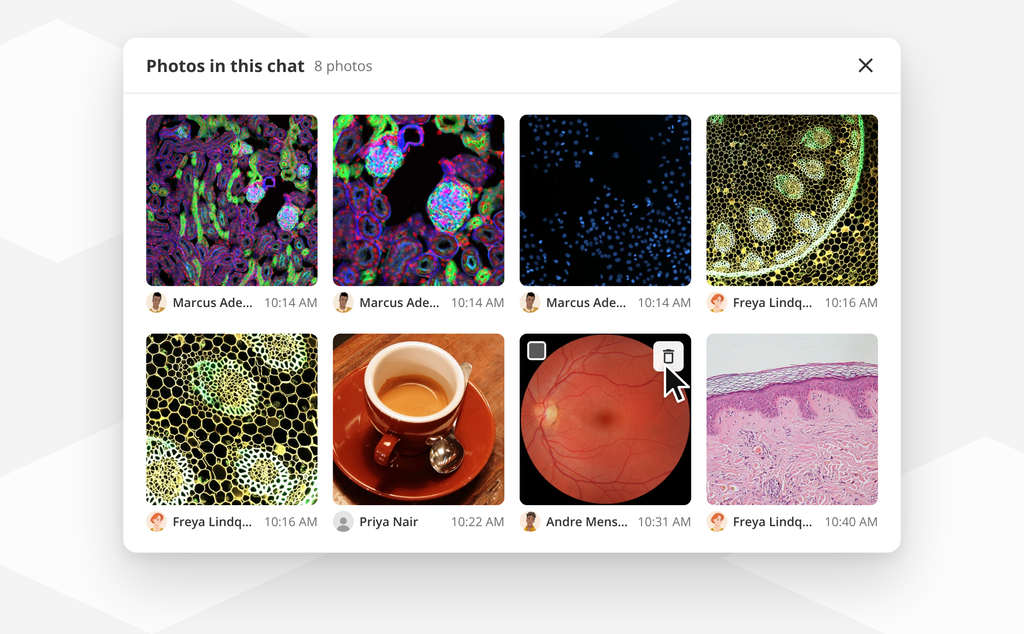
You can change photo sharing permissions in Event Settings > Options > Chat Options > Photo Sharing Options. Photos can be JPG, PNG or GIF, up to 25 MB each.
Copy User Journeys. Built a journey you love? Copy it from the same event or from another event in your account, instead of setting it up from scratch.
Pinned messages show more. Pinned messages now show photos and handouts when added to the message, not just the text.
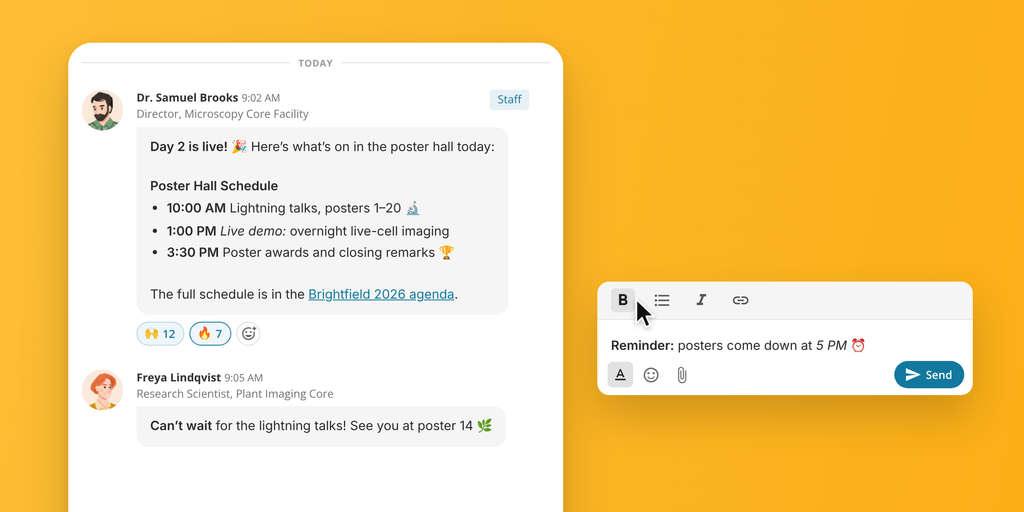
Line breaks in chat. Messages now keep their line breaks and the blank lines between paragraphs, so longer messages like instructions or session details are easy to read.
October 2026
We've made chat in Chati more expressive, easier to use and better at keeping your attendees engaged. Your attendees can now react with emoji, format their messages and connect privately in a cleaner, faster private chat. And you have new ways to spotlight your staff and give your booth and webcast teams the data they need, without the extra setup.
Chat Reactions
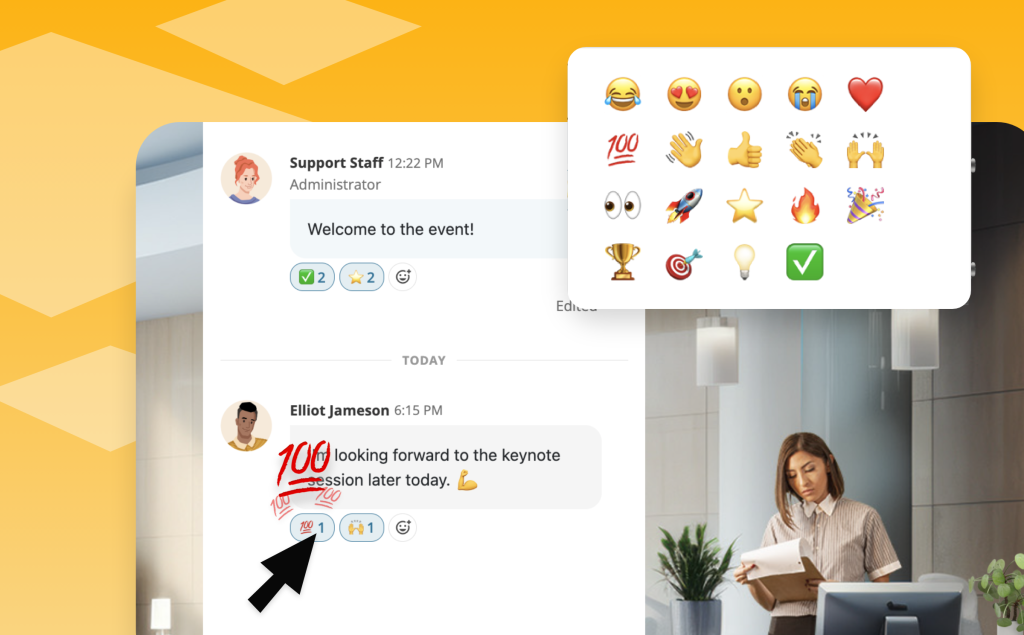
Attendees can now react to chat messages with emoji in event chat, session chat and private messages. Reactions are on by default, and organizers can turn them off per event in Event Settings > Options > Chat Options. Reaction activity also appears in the Event Chat Summary dashboard widget and in chat reports.
Chat Formatting
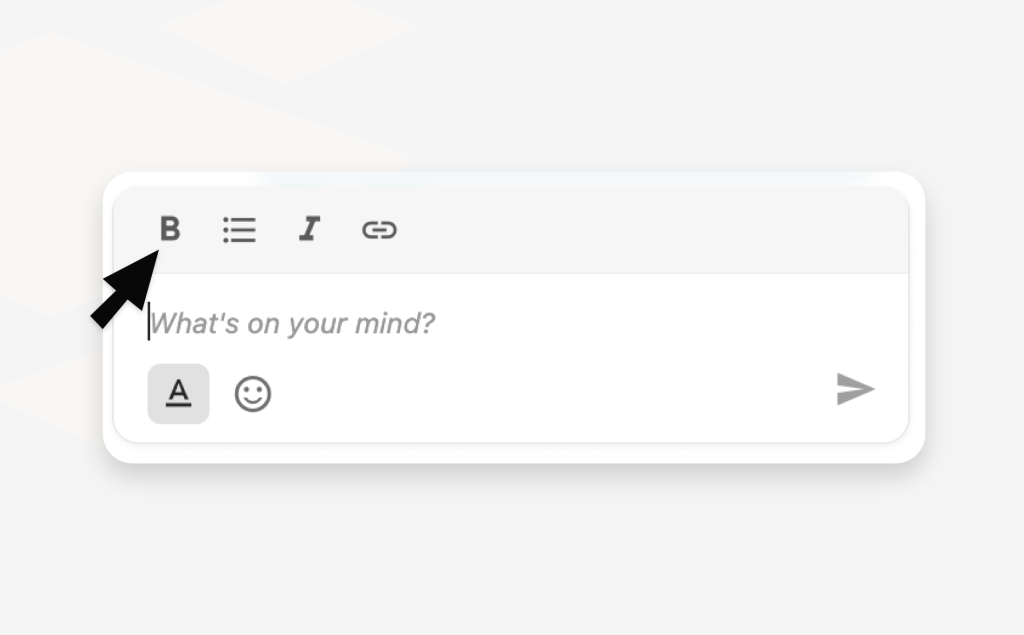
Messages can now include bold, italics, bulleted lists and links, along with proper line breaks. Formatting works in regular chat and in pinned messages, so announcements are much easier to read.
Redesigned Private Chat
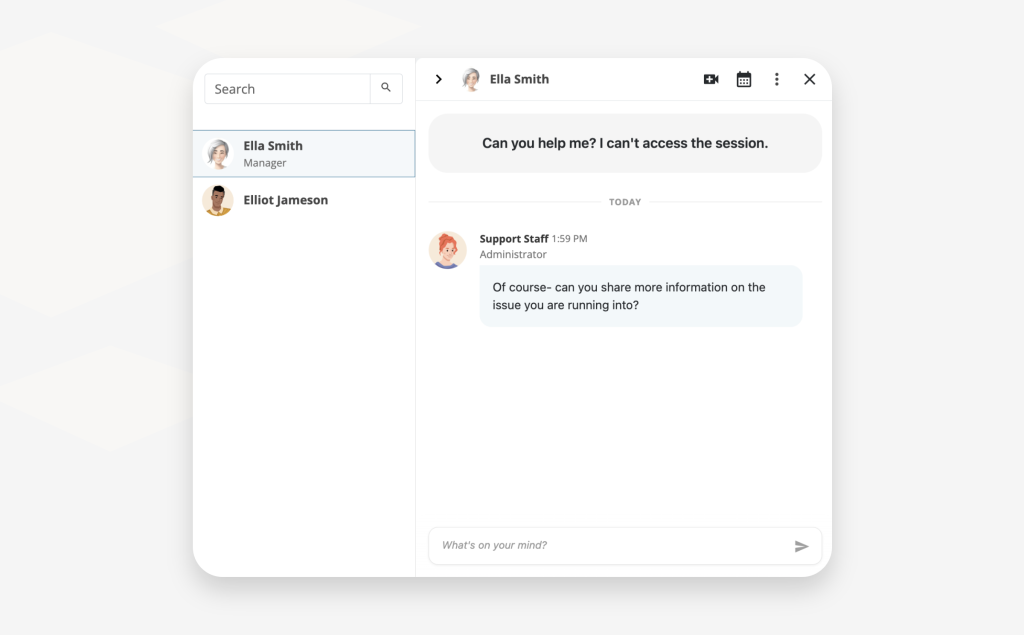
Private chat has a whole new layout. Your conversations are listed down the left side with the most recent at the top, and a search bar helps you find anyone fast. Quick actions let you schedule a meeting, view a profile or send a business card right from the conversation. Private video calls now let you choose your camera and microphone before you join, and the chat stays beside the call, collapsible when you want more room.
Updated Pinned Messages
Pinned messages now take up less space and keep the focus on the conversation. Pins appear one at a time so they're easy to flip through, and they tuck away as you scroll back through older messages. A Dismiss option shrinks them to a small "Pinned Messages" tag you can click to bring them back.
Event Staff
Organizers can now mark anyone with a staffing role as Event Staff, from event admins to booth and webcast staff. Staff get a Staff tag next to their name in event-wide group chats and in the Who's in the Event list, so attendees know exactly who to ask for help. Manage it in Event Settings > Event Staff.
"Is My Booth" and "Is My Webcast" Report Filters
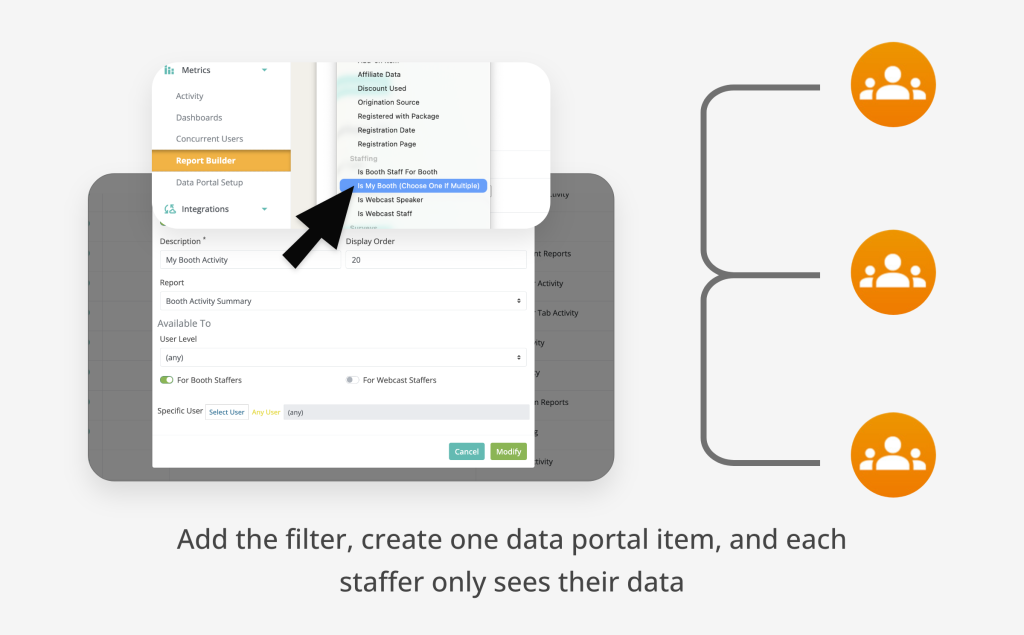
Build one report and share it with all of your booth or webcast staff, and each person sees only the data for the spaces they staff. Add the Is My Booth or Is My Webcast filter, add the report to the Data Portal once, and you're done. Staffers assigned to more than one space can choose which one to view. The filters are available on Booth Action Summary, Booth Activity Summary, Booth Handout Summary, Booth Visit Detail, Webcast Activity Summary, Webcast Poll Response Detail and Webcast View Detail.
Login Overlay Panel Template
A new login page template pairs a full-bleed photo background with a translucent side panel. It's available to select for your account's login page.
A Fresh Look for Chat
Chat has a cleaner, more modern look. Dates now appear as dividers between days, job titles show on messages, and a new More menu on each message lets you view a profile or send a business card. Moderators get a dedicated Moderator Tools section, and a slimmer message bar gives conversations more room, especially for inline chat.
Clearer Private Chat Requests
Chat invitations have a refreshed look, and the note you send to start a conversation now appears as an intro at the top of the thread. You'll also see clearer states while a request is waiting to be accepted, plus a friendly empty state in group chats that don't have messages yet.
Separate Zoom Webcast Types
Zoom now has two webcast types, so you can match the type to the kind of link you have. Choose the embed link type when you want your Zoom session to play right inside your Chati event, so attendees never leave the space. Choose the standard join link type for regular Zoom meeting links, which can't play inside Chati and will open in a new window.
More Improvements
We'd love to hear what you think of the new chat experience. Try it out at your next event and send questions or feedback to support@chati.com.
July 2026
This release is a big one: our Salesforce integration is officially in beta, we've rolled out two brand-new space template sets, and we've made real improvements across the platform.
Salesforce Integration (Beta)
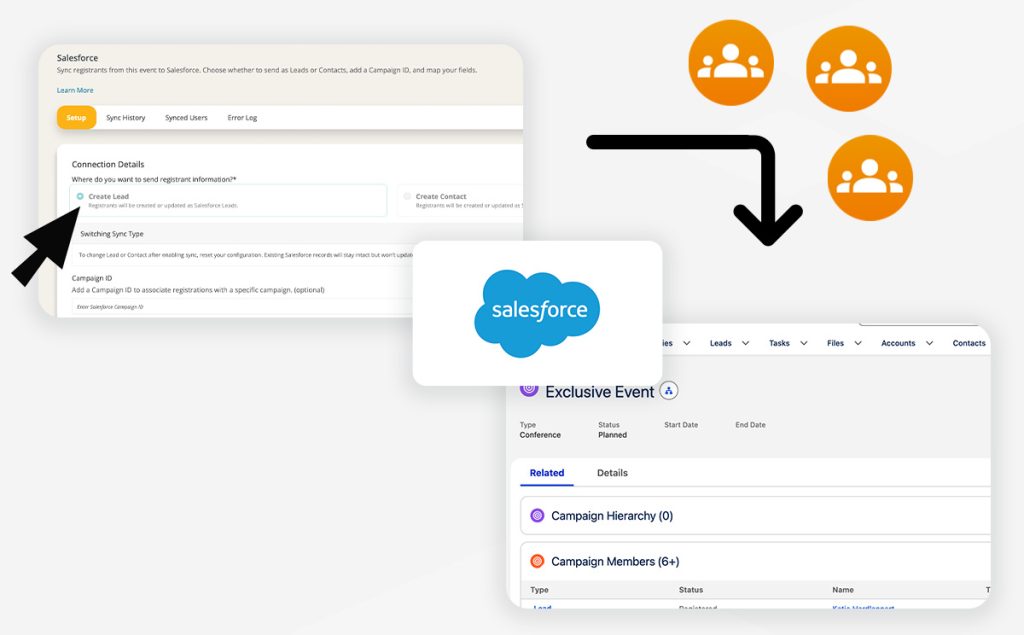
You can now connect your Salesforce org directly to Chati. Once connected, registrants sync automatically as Leads or Contacts, complete with campaign tracking, custom field mapping, and a full sync/error log so you always know what's happening. We're looking for a few client partners to test this out on an upcoming event — reach out to your Chati contact if you're interested.
Two New Space Template Sets: Prism & Ember
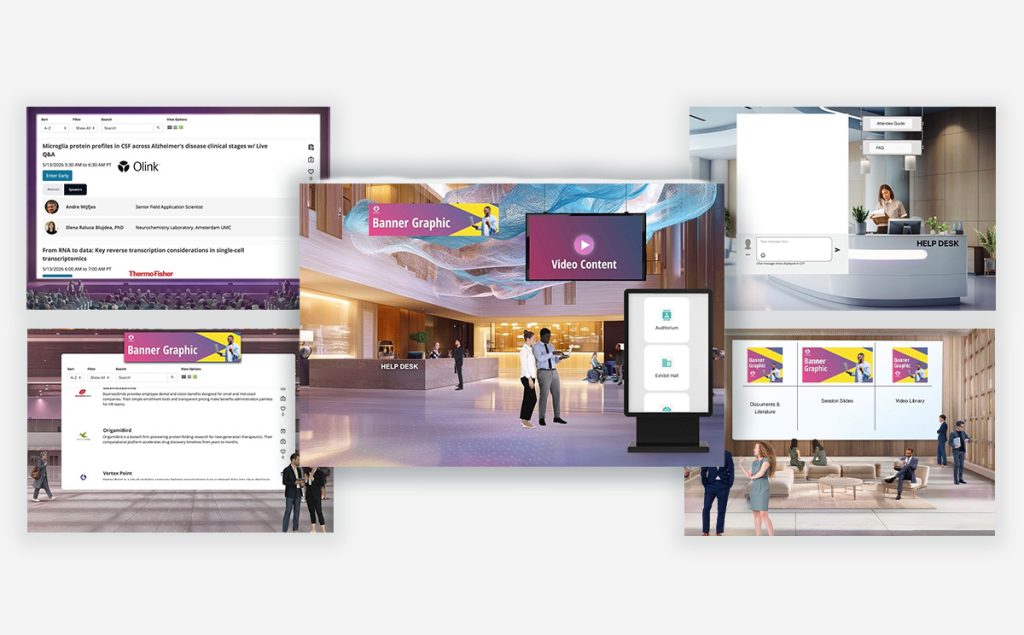
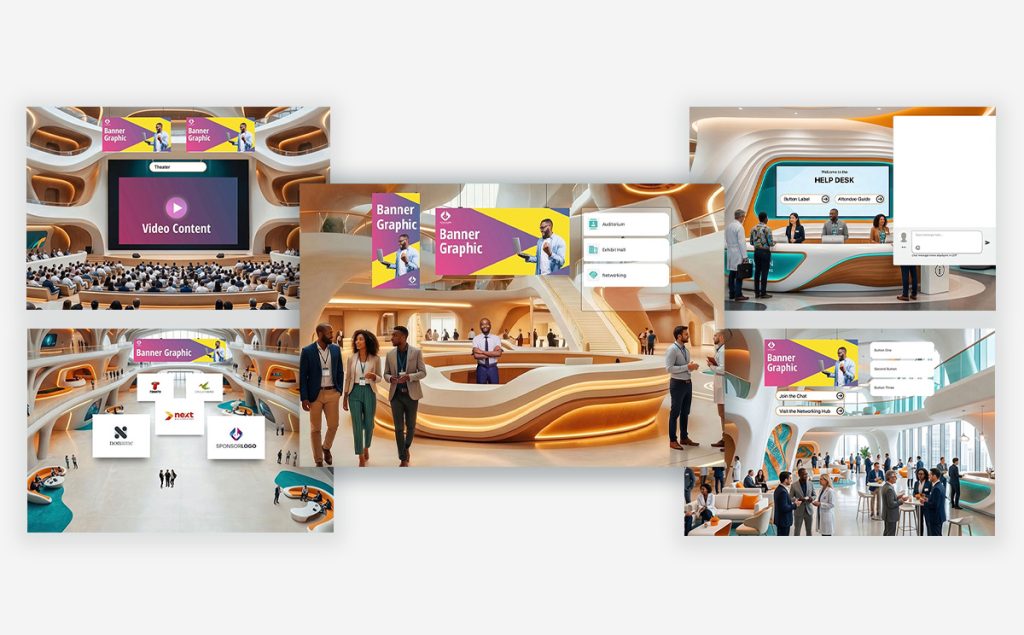
Building an event just got easier. Prism brings a sleek, gradient-lit aesthetic built for tech conferences and product launches — Lobby, Auditorium, Exhibit Hall, Resource Center, and Help Desk. Ember brings a warm, wood-and-teal look tailored to healthcare and medical events — Lobby, Auditorium, Exhibit Hall, Networking Lounge, and Help Desk. Both sets are ready to use straight from the template picker.
Email Updates
You can now set a friendly "From" name and a reply-to address on your email distributions.
More Ways to Organize Your Journeys
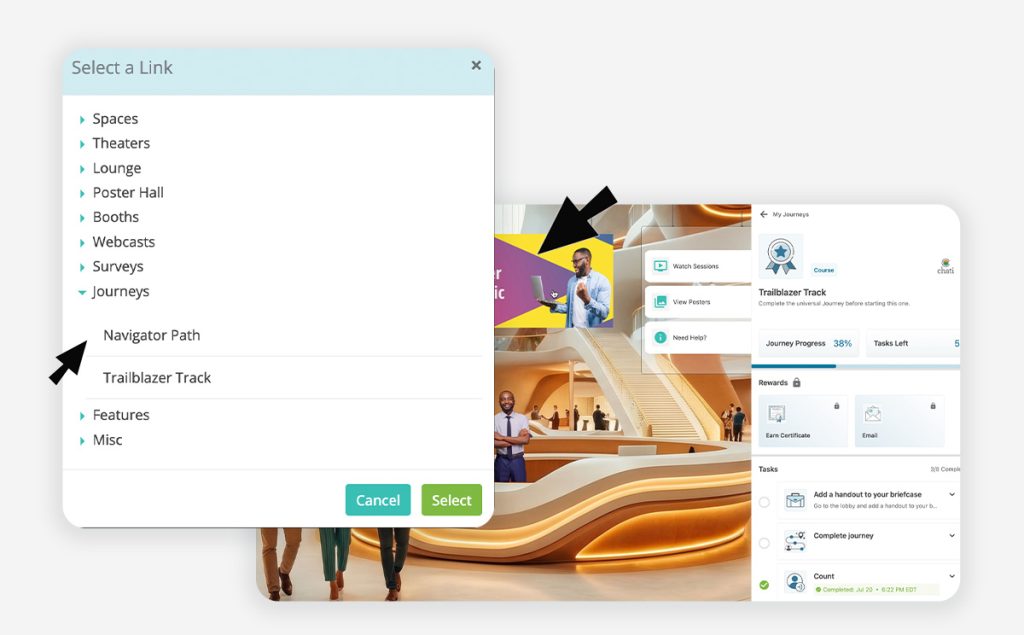
Journeys now support a custom display order, so you control the sequence attendees see. You can also link directly to a specific journey from any link picker in the platform, and when you copy an event or event structure, you now have the option to copy journeys along with it instead of rebuilding from scratch.
More Control Over Modals
Modal size is now configurable when you're linking to a modal from a dynamic banner or navigation menu item rather than being locked to one default size.
Reporting: Unique Handouts Viewed
The Registrant Activity Summary report now includes a Unique Handouts Viewed field, giving you a cleaner view of engagement per attendee.
Our team is here to help. If you have questions on updates or want to share feedback with us, send us an email at support@chati.com.
April 2026
This month we shipped something we've been working toward for a long time: a completely new approach to space templates. We’ve introduced two new immersive template sets — Canopy and Cobalt — alongside a redesigned template selector that makes building events faster, cleaner, and more intuitive than ever. Plus a handful of quality-of-life improvements across the board.
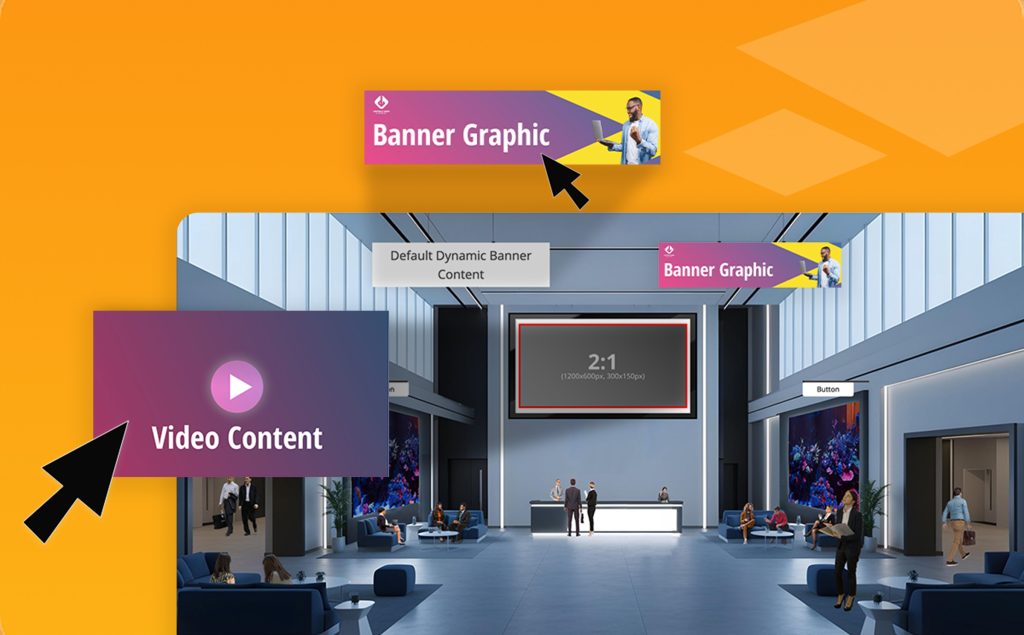
Canopy & Cobalt: Immersive Space Template Sets
Say hello to Chati's first cohesive template collections. Canopy brings a natural, open-air conference feel with greenery and organic tones, while Cobalt delivers a sleek, professional environment in deep blues and moody contrast.
Each set includes templates for your lobby, auditorium, lounge, exhibit hall, and help desk — designed to work beautifully together so your event feels like a unified experience from the moment attendees walk in. Both sets are fully responsive (yes, mobile too), easy to customize, and built specifically with self-service event builders in mind.
If you've ever stared at a blank space and wondered where to start, these templates are your answer.
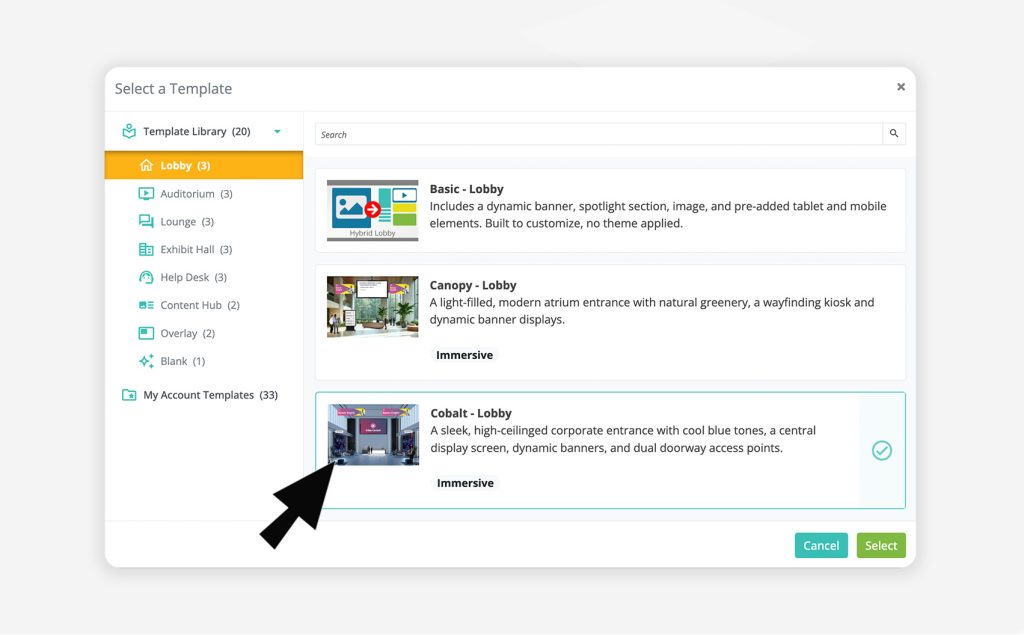
Template Selection is Now Easier
We've completely redesigned the template selector across the platform — for spaces, webcasts, email, registration, and more. Templates are now organized in a clean left-hand panel by category, so finding what you need is fast and obvious. For spaces specifically, the new taxonomy means every template is labeled by style (like Canopy or Cobalt), space type (lobby, auditorium, etc.), and a type badge so you always know what you're working with.
Template Preview
Before committing to a template, you can now hover over any option and click a preview button to expand a full thumbnail view. See exactly what a space looks like before you select it — a small addition that makes a big difference when you're making quick decisions.
Template Change Notification
When you switch templates in the space editor, you'll now see a clear notification letting you know the editor will reset to the new template's defaults. Your uploaded assets (handouts, videos, etc.) are safe — but you'll need to relink them in the editor. We'd rather you know upfront than wonder why things need reconnecting.
Legacy Template Cleanup
We've retired 3D, inline, and several hybrid templates that were non-responsive and no longer reflected the quality bar we're building toward. The templates that remain have been renamed and updated with clear, user-friendly descriptions.
Events using a retired template will not be affected. However, if you switch to a different template, the retired template will no longer be available for reselection.
Our team is here to help. If you have questions on updates or want to share feedback with us, send us an email at support@chati.com.
With virtual events becoming one of the mainstream ways to network and build connections worldwide, setting the stage for successful virtual events is vital to ensuring the highest levels of engagement and connection-building for both the organizers and attendees.
Here, we will discuss the importance of planning a virtual event like a pro, from event planning and promotion to event design to execution to feedback. Understanding these steps will ensure you achieve the highest levels of engagement, connectivity, and inclusivity for everyone.
When planning your virtual event, identifying goals and objectives is critical to achieving the highest level of success for everyone. Asking questions like, what are we trying to accomplish for the short and long term, how will we achieve it, and what impact will we make will not only ensure a successful virtual event but will help you achieve the maximum possible engagement levels and connectivity for everyone.
A primary starting point is understanding the purpose of your event. Are you trying to help your attendees improve their networking skills, advance their careers, or provide valuable information or education that could help them personally or professionally? Once you understand your event's purpose, you can plan and promote it more easily.
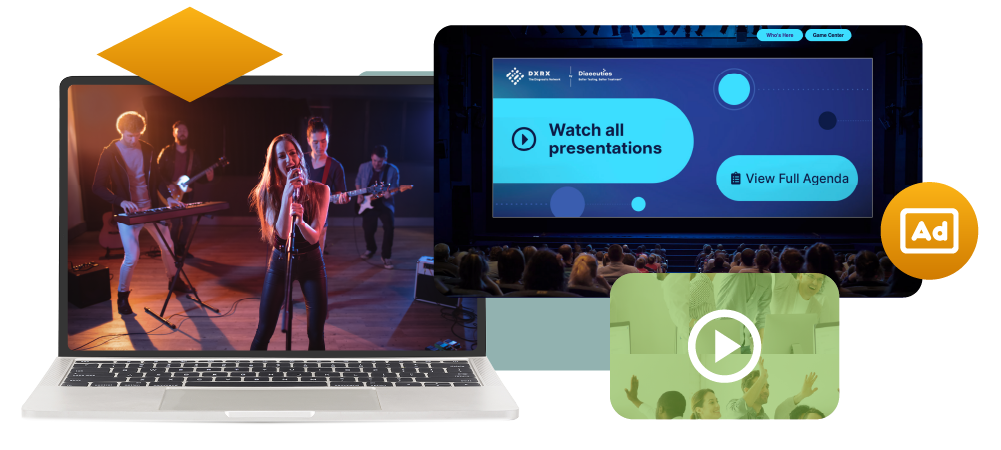
Once you identify goals and objectives and understand the event's purpose, the next step is determining the scale of the event, which will allow you to establish how many attendees you will be hosting. This ensures that you target the right audience with the necessary level of engagement and promotion without going overboard on the logistics before, during, and after the event.
All successful events have successful teams behind the scenes, and this begins with establishing the role of a project manager, sometimes known as the virtual event planner, whose role is to ensure everything runs smoothly from start to finish. This includes ensuring all team members are on the same page and carefully documenting all aspects of the planning and implementation of the virtual event, as well. The most essential characteristic of the project manager is to stay in constant communication with all team members to ensure that everything stays on track from start to finish.
Once a project manager is assigned, the next step is building a well-rounded team assigned to different aspects of the virtual event, from promotion and planning to event design and execution to how feedback will be collected and documented. No matter how small the task, a well-rounded team will successfully contribute to the success of the virtual event from start to finish.
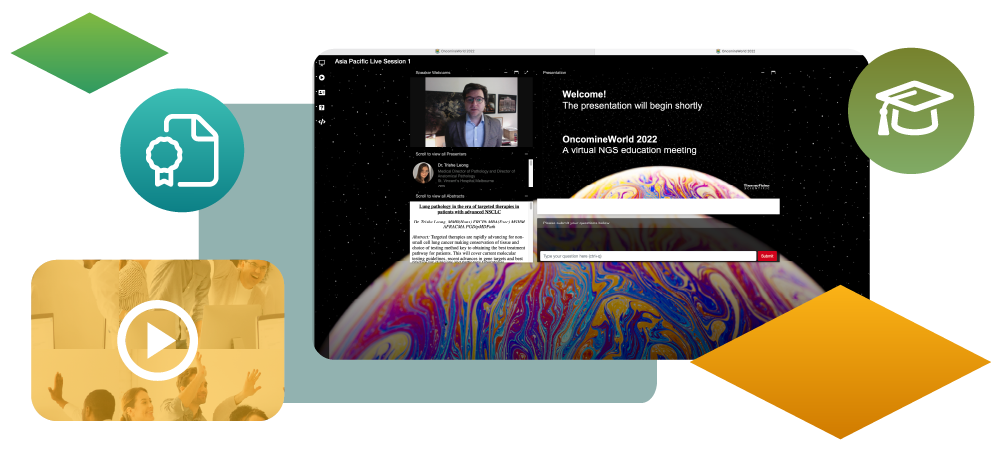
Virtual events aim to achieve the highest level of engagement and connectivity for everyone; you can accomplish this by designing engaging team-building activities to create camaraderie among your attendees. Team-building activities allow your attendees to network and build connections through interpersonal engagement and interaction, which can foster connections and build inclusive relationships for everyone.
Incorporating real-time interactions is another method to develop engaging content and activities, as this offers your attendees the opportunity for live discussions and knowledge-sharing, which will only achieve the highest level of engagement and inclusivity for everyone. Through these real-time interactions, your attendees can hone their networking skills while learning from many individuals worldwide.
One strategy for a successful virtual event is leveraging happy hours and face-to-face moments with your attendees, which will allow them to engage and interact with each other in a more personal and relaxed setting. Face-to-face communication also offers attendees increased knowledge-sharing and enables them to learn from each other more personally.
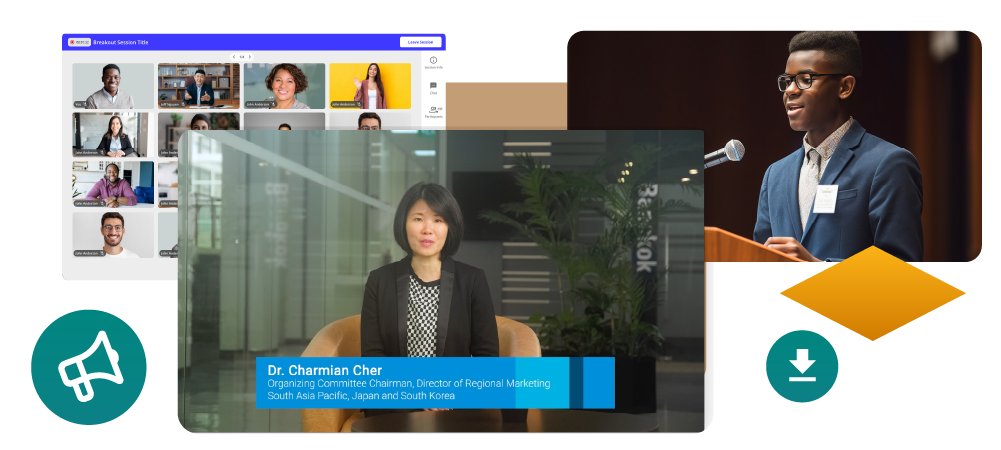
While the project manager's job is to ensure all team members are on the same page through the planning and execution of the virtual event, the marketing manager's role is essential in promoting the event. This includes ensuring they target the right audience, streamlined registration, and sending invites to all attendees leading up to the event.
Successful event promotions ensure you are maximizing brand awareness both leading up to the event and through the event, as the goal is to build connections among your attendees while building your brand, which will ensure your attendees will return for future events you might host.
Social media has become a part of our daily lives, and harnessing the power of social media for promoting your virtual event cannot be understated. This includes using company social media pages, such as X, Instagram, or Facebook, to promote your event and even having a social media account solely dedicated to your virtual event, especially if the event is part of a series.
Throughout the virtual event, monitoring and gathering data on attendee engagement and audience interaction is paramount for achieving the most impactful and successful virtual event. This can be accomplished either by your team members or through artificial intelligence and will ensure your attendees achieve the highest level of engagement and connectivity possible.
Another way to ensure a successful virtual event is by evaluating the impact of the team-building activities to ensure everyone has the highest level of engagement and connectivity. Determining which activities are the most and least impactful will ensure your attendees are engaged while setting the stage for successful virtual events.
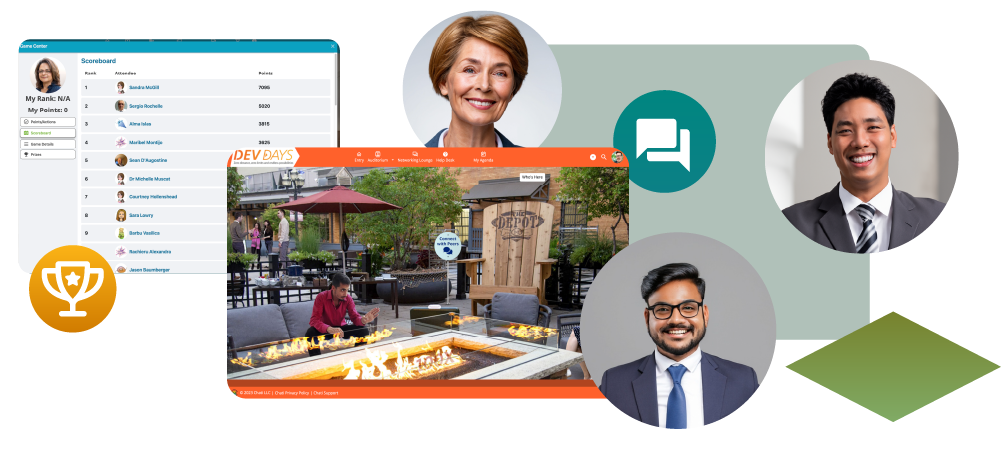
A significant step to ensure you continue to have successful virtual events is analyzing post-event data and feedback from your team and attendees. Feedback surveys sent via email or within your event platform are an excellent way to collect feedback immediately following the event. It's best to do this quickly following your event so the information is fresh in everyone's minds and you receive the most valuable information as fast as possible.
One area to focus on is identifying areas for improvement; this includes everything from event planning and promotion to targeting audiences to event management and even how you collect feedback. Concentrating on improvement will ensure you build the best team and host the most impactful event in the future, ensuring more significant levels of engagement and connection-building for everyone.
When planning a virtual event like a pro, having the right team and objectives in place will ensure a smoother and more successful virtual event, from event planning and promotion to event design to execution to feedback. Through this, you ensure the maximum level of engagement and interaction for your attendees and allow them the best opportunity for networking and connectivity with individuals from all over the world. We encourage event planners to embrace these best practices when planning a virtual event like a pro, which will ensure connectivity and inclusivity remain a top priority for everyone.
Sources: Cvent, Wrike, EventBuilder, Think Orion, Attendee Interactive, The Social Media Hat